
Version 2 - setup and everyday use in Business Central.
You are reading Version 2. Check Implementation Model in Claimlane Integration Setup and use the matching guide. This refers to the implementation model, rather than the installed extension's release number.
V2 uses Data Sources and a common Ticket page with B2B/B2C channels. Each B2B line has its own Outcome. See Version 1 documentation for Suppliers, Brands and legacy ticket processing.
Last updated:
Before you can start using Claimlane Integration, you need to have a Claimlane account. If you don't have one yet, you can sign up for an account at claimlane.com.
Once you have your Claimlane account, you'll need to generate an API key to connect your account to Business Central. You can request one through your Claimlane contact. Your contact can also help you set up Claimlane so the integration works properly.
Agree the Data Sources, B2B/B2C workflows and status IDs with your Claimlane contact. Configure the product data blueprint and technical labels in Claimlane to match Business Central. Labels identify the data used by the integration; the displayed tag name alone is not enough.
For B2B, each product line must have an Outcome. Create an Outcome tag with options whose technical labels match the mappings in Claimlane Outcomes. For lines that create a credit memo or return order, also provide the return reason and the invoice reference needed by your pricing setup. See B2B Outcomes for the supported options.
Record the Ready, Processing, Error and Done status IDs separately for the B2B and B2C inboxes. If B2C return expiry is used, also record the Expired status ID. Enter these IDs in the matching B2B/B2C Statuses group in Business Central.
Follow these steps to install Claimlane Integration in Microsoft Dynamics 365 Business Central.
In Business Central, search for Extension Marketplace. Once Marketplace has opened, search for "Claimlane Integration" and follow the on-screen setup guide.
You can also install the extension directly from the Microsoft AppSource.
On Claimlane Integration Setup, choose Setup Standard Values to speed up a standard V2 setup. The action can initialize the technical labels, enable the settings below and create the standard B2B Outcome mappings. You can adjust the resulting configuration afterwards to match your Claimlane workflows.
Setup fields are populated only when Return Reason Tag Label is blank. In that case, all nine fields below are set together: existing values in the other listed fields are overwritten, even if they are already configured. If Return Reason Tag Label is not blank, all setup fields are preserved; the action does not fill individual missing labels. Setup fields outside this table are unchanged.
| Setup field | Default value |
|---|---|
| Return Reason Tag Label | return-reason |
| Invoice No. Tag Label | invoice-number |
| Price Reduction Tag Label | price-reduction |
| Unit Price Tag Label | unit-price |
| Outcome Tag Label | outcome |
| Create Whse. Documents | Enabled |
| Use Base Unit | Enabled |
| Auto Receive Special Items | Enabled |
| Release Replacement Orders | Enabled |
Outcome mappings are inserted only when the Outcomes list is completely empty. This check is independent of Return Reason Tag Label. An empty list receives all seven mappings in the B2B Outcome table. If any Outcome record already exists, all existing mappings are preserved and no missing standard mappings are added.
Review the labels and Outcome options against Claimlane before processing tickets. This action does not set the Company API Key, status IDs, Data Source workflow switches, Price Reduction Type or Price Reduction No.; complete the remaining configuration below. Although Unit Price Tag Label is initialized, V2 B2B pricing uses the ticket line's Unit Price directly, as explained under Document configuration.
| Field | How to configure it |
|---|---|
| Outcome Tag Label | The technical label of the B2B line's Outcome tag, commonly outcome. Its option labels must match Claimlane Outcomes. |
| Return Reason Tag Label | The technical label of the line's return reason tag, commonly return-reason. Option technical labels must match Business Central Return Reason codes. |
| Invoice No. Tag Label | The technical label holding the B2B line's invoice number. Use invoice-number for the Claimlane invoice flow. |
| Price Reduction Tag Label | An optional numeric percentage tag, commonly price-reduction. Configure Price Reduction Type and Price Reduction No. as well. The percentage sets the share of the original unit price to credit, so 20 credits 20% of that price. Charge (Item) reductions require an applicable invoice item entry. |
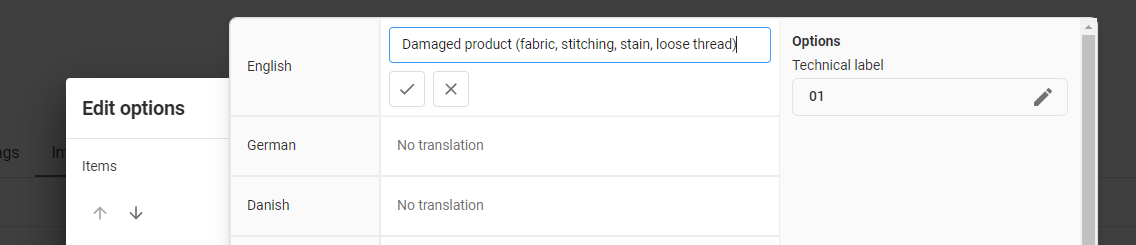
The selected Claimlane option's Technical Label must match a Return Reason Code in Business Central. For example, an option with Technical Label 01 maps to Return Reason Code 01. The option's displayed name can be different.
Tag Technical Label identifies the tag containing the reason. Enter that label in Return Reason Tag Label in Claimlane Integration Setup. Option Technical Label identifies the selected reason within that tag and is matched against the Business Central Return Reason Code. These are two separate labels: for example, the tag can be return-reason while its selected option is 01.
In V2, Return Reason Tag Label selects which Claimlane line tag contains the return reason. The integration then reads the selected option's Technical Label; the tag label itself is not the Return Reason Code.
B2B Claim Action controls the credit memo created for Scrap & Refund lines. B2B Return Action controls return orders created for Return Outcomes. These field names do not classify the entire B2B ticket. Each action offers Do Nothing, Release, Send for Approval or Post. Approval depends on your Business Central workflow setup.
B2B Claim Location Code overrides the return reason's default location on credit memo lines; B2B Return Location Code does so on return order lines. For Scrap & Refund, the Return Reason must have Inventory Value Zero enabled and the effective location must not require receiving.
Release Replacement Orders controls automatic release of replacement sales orders. When enabled, Create Whse. Documents also allows warehouse shipment creation according to the location setup. Replacement orders are not automatically posted by this setting. For return orders, warehouse receipt creation is supported when the return action is Release and Create Whse. Documents is enabled.
B2B Order Missing Action offers Keep Open or Create when an applicable invoice entry cannot be found. Keep Open prevents document creation for affected lines unless Override is used. Create permits price fallback, but does not bypass missing items, customers or other validation. V2 first uses the referenced invoice price, then the ticket line's Unit Price, then the customer's list price if needed.
The B2B ticket must supply a valid Customer No.. V2 does not use the legacy name-based customer lookup. Some legacy fields remain visible in setup, including Unit Price Tag Label, B2B Price Application and Auto Application; the V2 B2B handler does not use these fields. It applies an available invoice item entry directly.
Get Data Sources retrieves the sources and available blueprint labels from Claimlane. Open Claimlane Data Sources to configure each source. V2 uses these settings instead of Suppliers and Brands or the legacy global enable switches.
| Field | What it enables |
|---|---|
| Enable B2B | Fetch B2B Tickets for this source. Their document processing is determined by each line's Outcome. |
| Enable B2C Claims | Fetch B2C claim tickets for this source. |
| Enable B2C Returns | Fetch B2C return tickets for this source. |
| Enable B2C Cancellations | Fetch B2C cancellation tickets for this source. |
| Enable Item Sync | Upload eligible products for this source. |
| Enable Subproduct Sync | Upload eligible assembly components as Subproducts during the SyncItems Job Queue run. |
| Enable Sales Invoice Sync | Upload eligible posted sales invoices for this source. |
Configure a Business Central Item Reference for the product with:
Claimlane uses the Item Reference barcode as the product's EAN and product identifier. The Item Card's GTIN is intentionally not used as the product EAN or as a fallback. An item-level GTIN is too broad for the required Item / Variant / Unit-of-Measure mapping; use Item References to identify that combination.
For a variant, the Item Reference's Variant Code must identify an existing variant of that item which passes the Data Source's variant filters. A blank Variant Code follows the item-level upload path.
The current V2 Item Sync enforces the barcode type, non-empty barcode and barcode uniqueness, but does not itself reject a blank Unit of Measure. Verify that the UOM is populated before enabling product uploads.
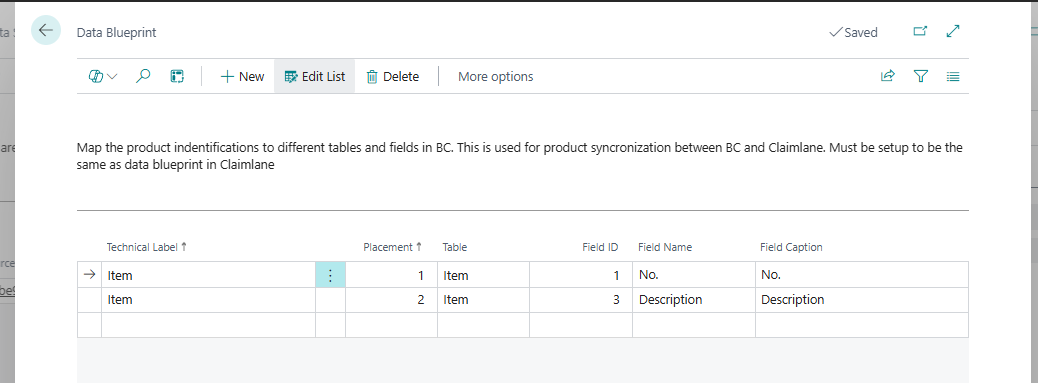
Use Data Blueprint on the selected Data Source to map each Technical Label to a Business Central Table and Field ID. Supported tables are Item, Item Variant and Item Reference. Use Placement to combine fields under the same label in order, separated by spaces. For example, map the Item No. and Description to the same product label.
For example, map Item No. and Description with the same Technical Label Item. Set Placement to 1 for No. and 2 for Description. Both values are uploaded to the same Claimlane field, in that order, concatenated with a space: an item numbered 1000 with description Blue Chair becomes 1000 Blue Chair.
Use Item Sync Filters and Sales Invoice Filters on that Data Source to select what is uploaded. After configuring its enable flags, mappings and filters, use the Job Queue data sync workflow for uploads.
A V2 B2B Ticket can contain different Outcomes on different lines. Open Outcomes from setup and map each option's Technical Label to the correct Outcome. The following labels are the initial mappings supplied by Setup Standard Values; match them to your Claimlane options.
| Outcome | Initial technical label | Documents and Return Reason requirements |
|---|---|---|
| Scrap & Refund | scrap-and-refund | Sales credit memo. The Return Reason must have Inventory Value Zero enabled. |
| Return & Refund | return-and-refund | Sales return order. The Return Reason must NOT have Inventory Value Zero enabled. |
| Scrap & Full Replace | scrap-and-full-replace | Replacement sales order using the original line's EAN and quantity. |
| Scrap & Partial Replace | scrap-and-partial-replace | Replacement sales order using the line's Product Parts. |
| Return & Full Replace | return-and-full-replace | Sales return order and replacement sales order using the original line's EAN and quantity. The Return Reason must NOT have Inventory Value Zero enabled. The Return Order line is created with 100% Line Discount; the replacement Sales Order line remains 100% discounted. |
| Return & Partial Replace | return-and-partial-replace | Spare-part flow: Product Parts define the items and quantities both returned on the Sales Return Order and replaced on the Sales Order. The Return Reason must NOT have Inventory Value Zero enabled. Both the Return Order Product Part line and replacement Sales Order Product Part line have 100% Line Discount. |
| Decline | decline | No document for this line. |
For Return & Partial Replace, the original ticket item is not used for either document's lines. Original invoice lookup, invoice line lookup, Item Ledger Entry lookup and historical price lookup are not required. An Invoice No. tag is therefore not required solely for this Outcome. Normal Sales Line validation supplies any default unit price.
This spare-part flow still validates the Outcome, customer, Return Reason, Product Parts, item/UOM mapping, positive quantity and quantity precision, and effective return location before any Sales Header is created. Product Parts must exist; each EAN must resolve to a valid, unblocked item/variant and a valid UOM. A reference with a blank UOM uses the item's valid Base Unit of Measure for this ticket flow. The existing return-location override and warehouse requirements still apply.
Return Reason and Scrap location validations run before any documents are created for the B2B ticket. Invalid setup sets the ticket's Document Status to Error and prevents document creation. Review the ticket's Errors, correct the setup and retry Create Documents.
Lines with the same document requirement are grouped into a document for the ticket. For example, a ticket with Scrap & Refund, Return & Refund and Scrap & Partial Replace lines creates a credit memo, a return order and a replacement sales order. Inspect all three through Related Documents.
Replacement orders require a valid, unblocked customer. Full replacements use the ticket line's product and quantity. Partial replacements require Product Parts from Claimlane, each with a resolvable EAN and positive quantity. Replacement sales lines receive a 100% line discount.
Credit memo and return lines require a unique barcode item reference, a valid Return Reason and positive quantity. When an applicable original invoice item entry is found, quantities are checked against shipped and remaining returnable quantities. Return & Partial Replace validates Product Parts and does not perform these original invoice quantity checks. A ticket whose lines are all Decline creates no documents and can be completed and archived by lifecycle processing.
V2 B2C uses the same Claimlane Tickets list and Ticket page as B2B. Check Ticket Channel Type for B2C, then the ticket type for its workflow. Enable each B2C workflow on its Data Source.
Order No. Lookup Field selects the posted sales invoice field matching the ticket's Order Reference. If unset, External Document No. is used. The lookup also checks the Ship-to Country/Region Code against the ticket's address country. A missing customer or posted invoice reference can therefore prevent document creation.
Only Get Refunded Tickets limits incoming B2C tickets to ones with refund information. When using it, perform the refund in Claimlane before moving the ticket to Ready. Review B2C Order Missing Action with your BC partner; Create does not bypass customer and item validation.
Configure Return Label Item No. with a Service item when a return label price is included. Configure Special Items for freight and gift cards as needed, and Refund Policy for gift card/payment method priority. Inspect the generated lines before posting.
Advice Return Integration ID enables notifying Claimlane of received quantities from posted credit memo lines for eligible posted returns and cancellations. The ticket is marked Refunded after a successful advice response. This notification depends on your Claimlane integration configuration.
Expired Date Formula and Expired Status ID enable expiry of old, unarchived B2C return tickets. For example, a formula of -30D sets a cutoff 30 days before today. Expiry requires a Created ticket with one Created related return order and no posted return receipt. Eligible return orders and associated warehouse receipts are deleted, and Claimlane is notified of Expired status. Received returns are not expired by this process.
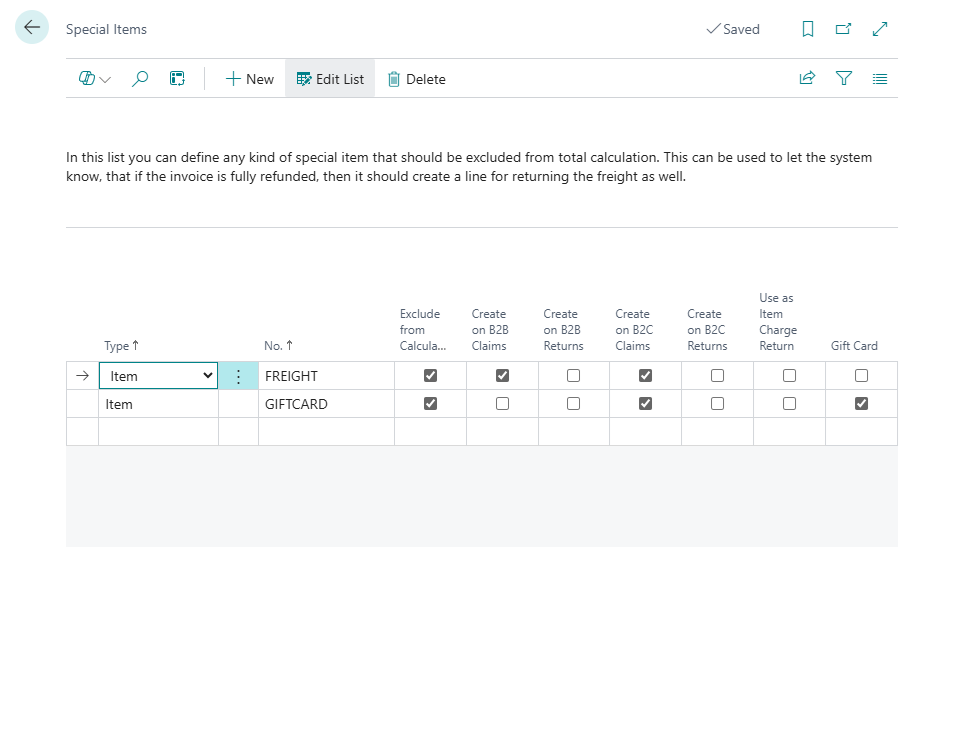
Open Special Items from Related in Claimlane Integration Setup. These identify invoice lines such as freight, rounding lines, gift cards or other non-standard items that need different handling from ordinary merchandise.
Special Items are supported in V1 B2B/B2C and V2 B2C invoice refund processing. V2 B2B line Outcomes do not use this additional-refund flow.
For example, configure freight as a Special Item, select Exclude from Calculation and enable creation for the applicable channel and document type. Freight can then be added to the refund when the merchandise on the original invoice is fully credited. Review the generated document before posting.
Search for Claimlane Tickets and filter by Ticket Channel Type to work with B2B or B2C. The Claimlane Role Center's B2B/B2C activities open the common ticket list with the relevant filters. Open a ticket to review its lines, Data Source Tags, Product Parts and Errors.
A ticket can remain Created while one of its documents is still outstanding. Related Document errors or cancellations affect the ticket's overall Document Status. Clearing Errors only clears the log; it does not repair a document or complete a ticket.
Posted credit memo information is synchronized even when B2B Upload Credit Memo PDF is disabled. Enable that field to attach the PDF as well; enabling it sets B2B Note Type to External. Otherwise B2B Note Type controls whether the credit memo note is internal or customer-visible.
Upload Sales Invoice PDF and Upload Sales Shipment PDF control replacement-order PDF uploads. When enabled, the corresponding posted invoice or shipment must exist and synchronize successfully before the B2B ticket can be completed. Lifecycle processing retries pending document synchronization; inspect Errors if completion is delayed.
Run Item Sync, Subproduct Sync and Invoice Sync through the Business Central Job Queue so synchronization runs automatically in the background. First configure the relevant Data Source flags: Enable Item Sync, Enable Subproduct Sync and Enable Sales Invoice Sync. Complete the Data Blueprint mappings and source filters before enabling the jobs.
Use the existing Claimlane Scheduled Tasks codeunit (71923580, TTU Scheduled Tasks) with Parameter String SyncItems for Item Sync and enabled Subproduct Sync, and SyncInvoices for Invoice Sync. Subproduct Sync runs together with Item Sync and needs no separate Job Queue entry. See Scheduled Tasks to configure recurring entries and set them to Ready.
Uploads are batched: Max Product Request Size controls product/Subproduct batches and Max Invoice Request Size controls invoice batches. The current implementation waits 120 seconds between consecutive V2 upload requests within a synchronization run, including the transition from product to Subproduct uploads. There is no delay before the first upload request in that run. Use Base Unit controls the unit of measure used for invoice uploads.
Product uploads select inventory items and unique barcode Item References using the Data Source's item, reference and variant filters. Check the Item Reference and EAN requirements before uploading. Invoice uploads use sources with Enable Sales Invoice Sync enabled and their Sales Invoice Filters.
V2 tracks successful synchronization separately for each Data Source and data area. Use Item Ref. Sync Status, Invoice Sync Status and Subproduct Sync Status on a Data Source to inspect what has been uploaded.
Enable Enable Subproduct Sync on the Data Source to upload assembly components as part of the SyncItems Job Queue run. The integration selects Item components in assembly BOMs whose component item does not itself have an Assembly BOM. Each eligible component needs exactly one non-empty barcode Item Reference for its Base Unit of Measure. Parent products are linked using their eligible base-unit EANs, including parents reached through nested assemblies. A Subproduct must have a usable Base-UOM barcode reference and at least one valid parentEan in its parentEans list; otherwise it is skipped.
Subproduct upload supplies available component data to Claimlane. A partial replacement still requires Product Parts on the incoming ticket line; enabling Subproduct Sync alone does not choose replacement parts.
On the affected Data Source, choose Reset Item Sync. State, Reset Invoice Sync. State or Reset Subproduct Sync. State, then let the corresponding Job Queue entry upload the eligible records again: SyncItems for Items/Subproducts or SyncInvoices for invoices. These actions clear local successful-sync tracking for that source. They do not delete products, invoices or Subproducts in Claimlane. Use them after changing filters or blueprint mappings when existing records need to be uploaded again.
Choose Setup Job Queues in Claimlane Integration Setup. Newly created entries are On Hold; review the schedule and set the required entries to Ready in Business Central. The CLAIMLANE category groups the jobs.
For data uploads, use recurring Job Queue entries with Object Type to Run = Codeunit and Object ID to Run = 71923580 (Claimlane Scheduled Tasks, technical name TTU Scheduled Tasks). Set the Parameter String to SyncItems or SyncInvoices as listed below. Configure the Data Source enable flags first; the Ready entries then synchronize automatically in the background. Subproducts share SyncItems and do not need a separate entry.
| Parameter String | Purpose |
|---|---|
| GetTickets | Fetch enabled Data Source workflows and process B2B/B2C lifecycle before and after fetching. |
| CreateDocuments | Create documents for unarchived Open/Error tickets, then process lifecycle. |
| SyncItems | Run V2 product uploads for Enable Item Sync sources, followed by Subproduct uploads for Enable Subproduct Sync sources, in the same background job. |
| SyncInvoices | Run V2 posted sales invoice uploads for Enable Sales Invoice Sync sources in the background. |
| SyncCustomers | Legacy V1 retailer invitation synchronization; this task does not run customer synchronization in V2. |
Fetching and document creation are separate tasks. A successful GetTickets run does not by itself create sales documents. Check the Job Queue Log Entries for errors and confirm Implementation Model is Version 2 if a task follows the wrong workflow.
Your BC partner can extend ticket synchronization and supported document processing through events. V1 event examples use legacy ticket structures and handlers; they must be reviewed for compatibility with V2. Ask your partner to check the event signatures in your installed version, especially for unshipped B2C cancellations and custom pricing.
Correct the source data in Claimlane, open the ticket in Business Central and choose Resync Ticket. Confirm the prompt after reviewing the ticket's document activity. Resync is available for both B2B and B2C with Document Status Open, Error, Cancelled or Expired, provided it has not completed refund processing.
Resync is blocked if there is an active sales document, successfully synchronized posted documents, or a Related Document that is not Cancelled. Even Cancelled Related Documents must have no active source document or posted history, including receipts and shipments.
On success, the integration unarchives the Claimlane ticket and returns it to the channel's configured Ready status, then deletes the local ticket and its details. It can be fetched again by Sync Tickets or the next GetTickets run, provided the Data Source workflow remains enabled. If the Claimlane update fails, the local ticket is retained and the error is logged.
If documents already exist, resolve the document or lifecycle issue with your BC partner. The V1 procedure involving Mark Supplier Integration is not the V2 recovery procedure.
Yes. Keep technical labels aligned between Claimlane and setup. For imported ticket data changes, use Resync Ticket only when eligible. For product or invoice upload changes, use the appropriate Data Source sync-state reset and upload again.
A B2B ticket may also have a return order or replacement order. Inspect all Related Documents, then run Process Lifecycle. Configured replacement PDF uploads can also delay completion until the required documents exist and synchronize.
Start with the Ticket's Errors, Data Source Tags on the affected line, and Related Documents. Use Log Entries in setup and, when needed, enable Debug Mode to record requests and responses in the Communication Log.
After fixing Business Central setup or reference data, use Create Documents to retry an eligible ticket without existing documents, or Process Lifecycle for posting/completion issues. Imported data changes may require an eligible Resync Ticket. Clearing Errors alone does not retry processing.