
Version 1 - setup and everyday use in Business Central.
You are reading Version 1. Check Implementation Model in Claimlane Integration Setup and use the matching guide. This refers to the implementation model, rather than the installed extension's release number.
V1 uses Suppliers, Brands and separate B2B/B2C ticket pages. Screenshots below show legacy V1 setup; some fields are hidden in newer releases. For Data Sources and line-based B2B Outcomes, use Version 2 documentation.
Last updated:
Before you can start using Claimlane Integration, you need to have a Claimlane account. If you don't have one yet, you can sign up for an account at claimlane.com.
Once you have your Claimlane account, you'll need to generate an API key to connect your account to Business Central. You can request one through your Claimlane contact. Your contact can also help you set up Claimlane so the integration works properly.
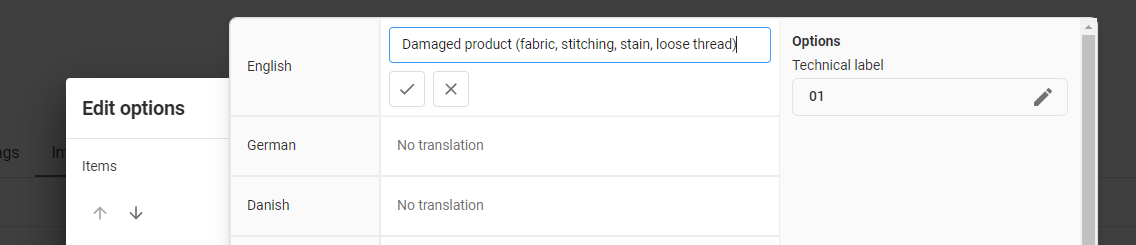
Internal and Flow tags are used to map data between Business Central and Claimlane. A rule for most of these tags in Claimlane is, that the Technical Label is what is the link between Claimlane and BC. For B2B, you create the tags this way:
The selected Claimlane option's Technical Label must match a Return Reason Code in Business Central. For example, an option with Technical Label 01 maps to Return Reason Code 01. The option's displayed name can be different.
Tag Technical Label identifies the tag containing the reason. Enter that label in Return Reason Tag Label in Claimlane Integration Setup. Option Technical Label identifies the selected reason within that tag and is matched against the Business Central Return Reason Code. These are two separate labels: for example, the tag can be return-reason while its selected option is 01.
In V1, use the same Tag Technical Label for the Claim Reason and Return Reason tags, as described above. Give each reason option the matching Business Central code.
Above tags are for B2B returns and claims. To setup tags for B2C, go to "Manage Company" - "Data Sources", click the 3 dots next to the data source you wish to edit and click "Configure". Click the "General Tags" button in the menu. Create the tags that you need to use. Only claim and return reasons are relevant for this integration.
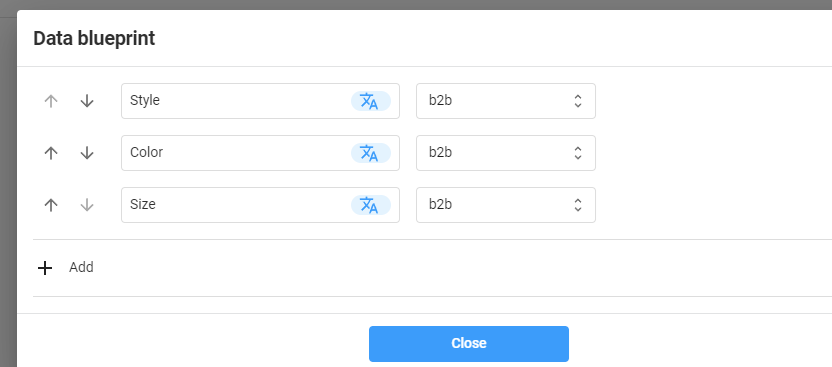
Product data is used to map products between Business Central and Claimlane. To create a product data blueprint:
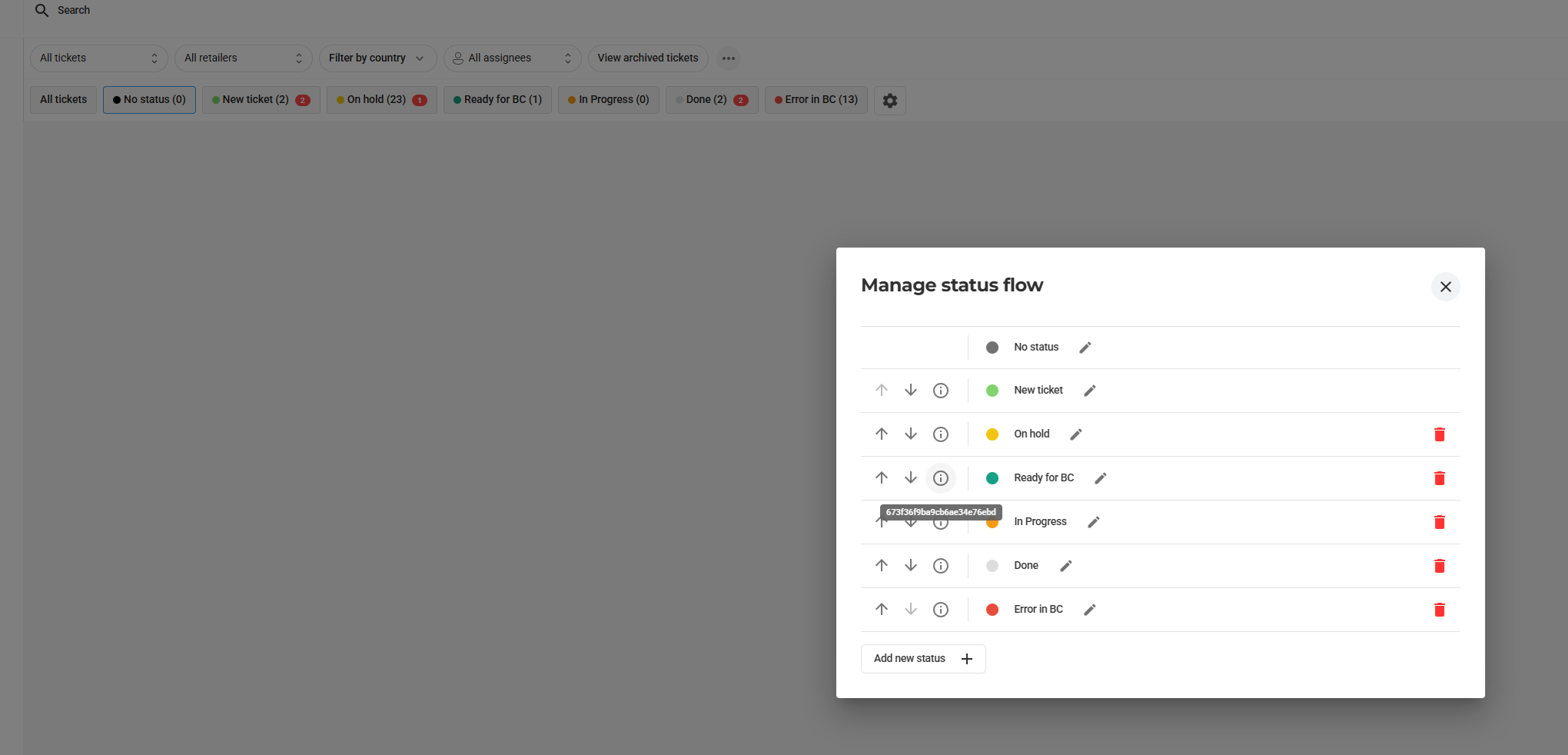
Statuses are used to track the progress of a return or claim. To create statuses:
Follow these steps to install Claimlane Integration in Microsoft Dynamics 365 Business Central.
In Business Central, search for Extension Marketplace. Once Marketplace has opened, search for "Claimlane Integration" and follow the on-screen setup guide.
You can also install the extension directly from the Microsoft AppSource.
Customize Claimlane Integration to match your business processes and requirements.
We recommend that you use the Assisted Setup wizard to configure Claimlane Integration. Select Version 1 in Implementation Model. To access the wizard, go to Assisted Setup in Business Central and follow the steps. See below for setup field definitions.
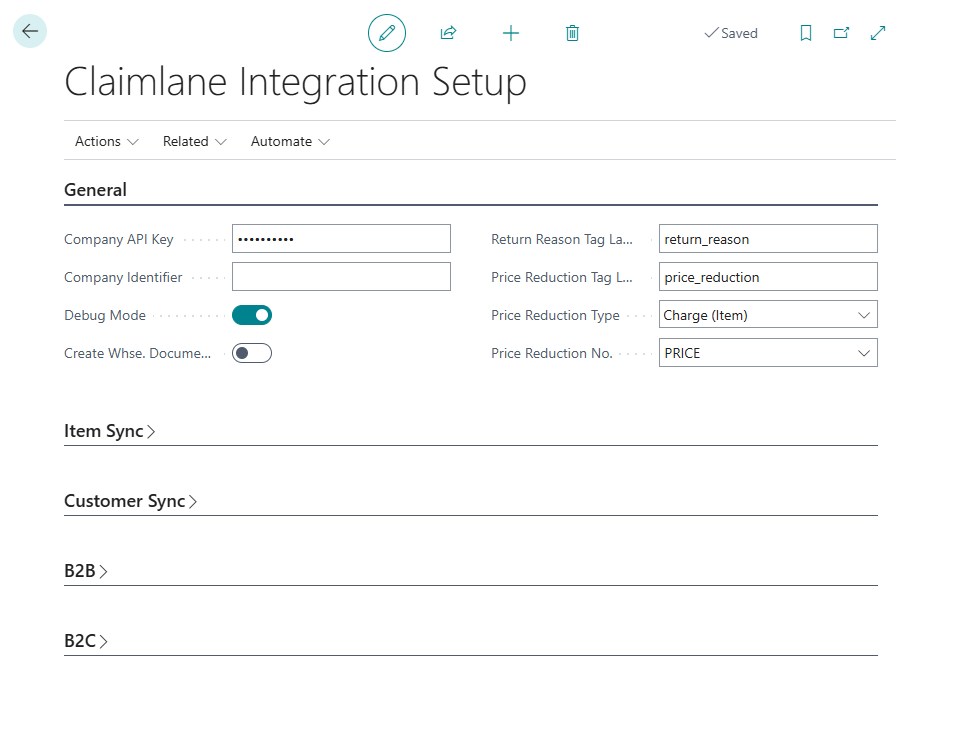
Company API Key
Your Claimlane API key is required to connect your Claimlane account to Business Central. You can find your API key in your Claimlane account settings or request one through your Claimlane contact.
Company Identifier
The identifier for the company. You can use this to differentiate your tickets between multiple companies, if you do not have a Claimlane instance per company. It is recommended to have one Claimlane instance per company, and therefore separate API keys.
Debug Mode
If set to Yes, the requests and response objects will be saved in the Claimlane Communication Log. This is useful for debugging purposes.
Create Whse. Documents
If set to Yes, the system will create warehouse documents for return orders, if location requires receipt.
Return Reason Tag Label
Defines which tag to use to find return reason on the item. This is required in order for the integration to work.
Price Reduction Tag Label
Defines the tag to use to find price reduction on the item. This is optional.
Price Reduction Type
Defines the type of price reduction. Options are G/L Account, Charge (Item) and Item. It is recommended to use Charge (Item).
Price Reduction No.
Defines the no. of the price reduction chosen in the Type.
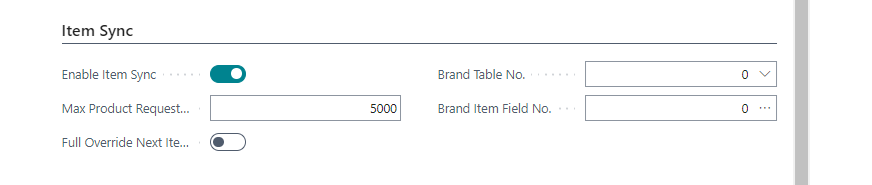
Enable Item Sync
Enables synchronization of items between BC and Claimlane.
Max Product Request Size
The maximum size of product data that can be uploaded to Claimlane per request. This is used to split up large product data sets into multiple requests.
Full Override Next Item Upload
Historical V1 option, now hidden and deprecated. Do not use this as an instruction for current synchronization.
Brand Table No.
Historical V1 field, hidden in current setup. Configure the brand-specific Item Sync Filters instead.
Brand Item Field No.
Historical V1 field, hidden in current setup. Configure the brand-specific Item Sync Filters instead.
For additional setup, see "Item Sync. Filters" below.
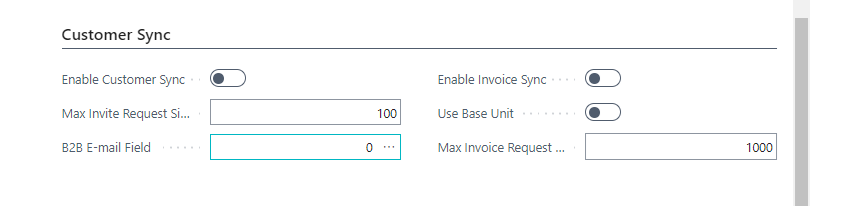
Enable Customer Sync
Enables synchronization of customers between BC and Claimlane.
Max Invite Request Size
The maximum size of customer invite data that can be uploaded to Claimlane per request. This is used to split up large invite data sets into multiple requests.
B2B E-mail Field
Select what field on the customer the email address should be copied from when creating Claimlane Retailers. The value can be changed in the Claimlane Retailer list.
Enable Invoice Sync
Enables synchronization of invoices between BC and Claimlane Data Sources.
Use Base Unit
If set to Yes, the system will use the base unit of measure for the item when syncing invoices. If set to No, the system will use the unit of measure on the invoice line.
Max Invoice Request Size
The maximum size of invoice data that can be uploaded to Claimlane per request. This is used to split up large invoice data sets into multiple requests.
For additional setup, see "Sales Invoice Filters" below.
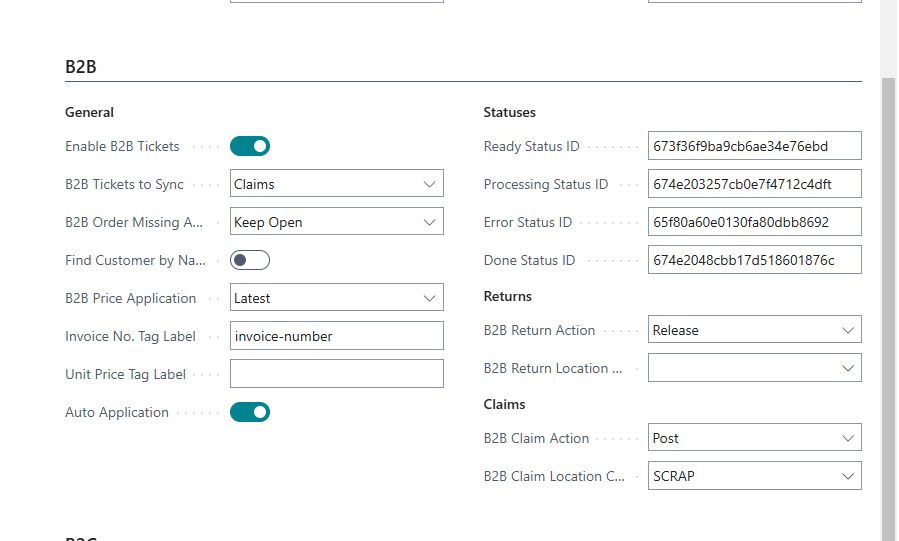
Enable B2B Tickets
Legacy option shown in older V1 releases. Current V1 setup uses Enable B2B Claims and Enable B2B Returns.
B2B Tickets to Sync
Legacy selector in older V1 releases; use the separate enable fields in current V1 setup.
B2B Order Missing Action
Defines what should be done if no related invoice can be found in the system.
Find Customer by Name
If set to true, system will attempt to find a customer by name if no customer number is found in data from Claimlane.
B2B Price Application
Defines what should be done if no price can be found from the matching invoice.
First: Uses unit price from the first found invoice line on the customer. Latest: Uses unit price from the latest invoice line.
Invoice No. Tag Label
Defines which tag to use to find item price based on Invoice No. If not set or not filled, the system will fallback to order no. logic. Has to be invoice-number if invoice flow is enabled.
Unit Price Tag Label
Defines which tag to use to find unit price on the item. If Unit Price is set in Claimlanem, it will override price found in BC.
Auto Application
If set to true, the system will automatically try to apply the credit memo or return order to the customer ledger entry of the invoice.
Statuses
Defines the statuses used in Claimlane. The ID's are found in Claimlane settings.
B2B Return Action
Defines what should be done when a return order is created. Options are Do Nothing, Release, Send for Approval or Post. Recommended action is "Release".
B2B Return Location Code
Defines the location code to use when creating a return order. Will override default location code set on return reasons.
B2B Claim Action
Defines what should be done when a claim is created. Options are Do Nothing, Release, Send for Approval or Post. Recommended action is "Post". "Do Nothing" can be used in the beginning to check if everything is working as expected.
B2B Claim Location Code
Defines the location code to use when creating a claim. Will override default location code set on return reasons.
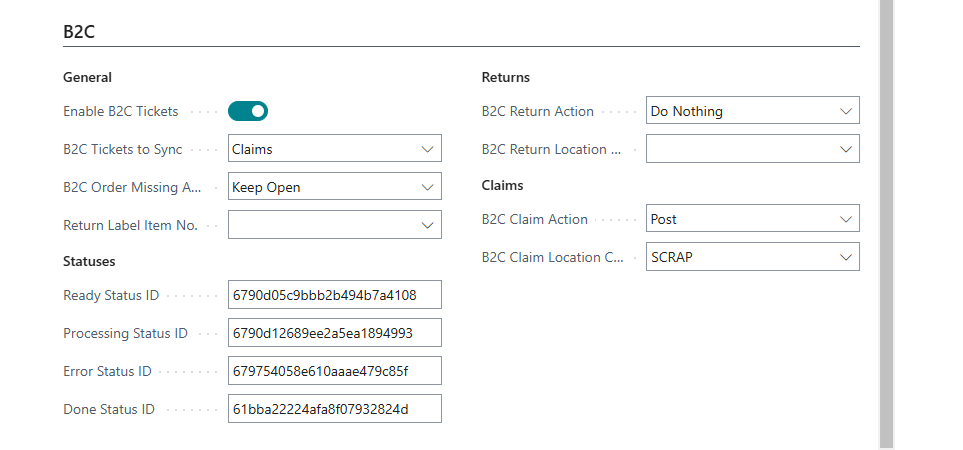
Enable B2C Tickets
Legacy option shown in older V1 releases. Current V1 setup uses Enable B2C Claims, Enable B2C Returns and Enable B2C Cancellations.
B2C Tickets to Sync
Legacy selector in older V1 releases; use the separate enable fields in current V1 setup.
B2C Order Missing Action
Defines what should be done if no related invoice can be found in the system.
Return Label Item No.
Defines the item number to use when creating a return label lines.
Statuses
Defines the statuses used in Claimlane. The ID's are found in Claimlane settings.
B2C Return Action
Defines what should be done when a return order is created. Options are Do Nothing, Release, Send for Approval or Post. Recommended action is "Release".
B2C Return Location Code
Defines the location code to use when creating a return order. Will override default location code set on return reasons.
B2C Claim Action
Defines what should be done when a claim is created. Options are Do Nothing, Release, Send for Approval or Post. Recommended action is "Post". "Do Nothing" can be used in the beginning to check if everything is working as expected.
B2C Claim Location Code
Defines the location code to use when creating a claim. Will override default location code set on return reasons.
V1 uses Suppliers and Brands, with separate Claimlane B2B Tickets and Claimlane B2C Tickets. In Claimlane Integration Setup, use Get Suppliers to retrieve Suppliers, Brands and product identification mappings. Configure the legacy filters and mappings below for the workflows you enable.
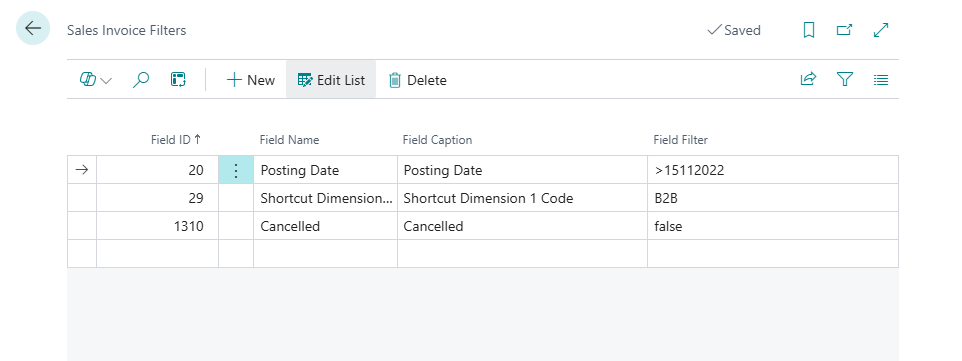
Sales invoice filters are used to filter what invoices should be synced to Claimlane (if "Enable Invoice Sync" is set to Yes). You might not want to sync all invoices, eg. only sync B2B invoices.
Sales Invoice Filters are located in Claimlane Integration Setup under "Related".
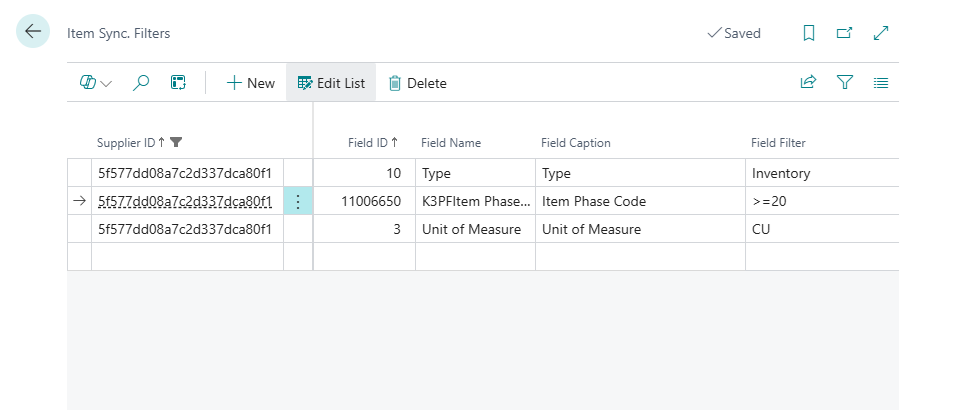
Item filters are used to filter what items should be synced to Claimlane (if "Enable Item Sync" is set to Yes). You might not want to sync all items, eg. only sync items with a certain brand, only PCS unit of measure, only active items etc.
Item Sync. Filters are located in Claimlane Suppliers as they are linked to each supplier.
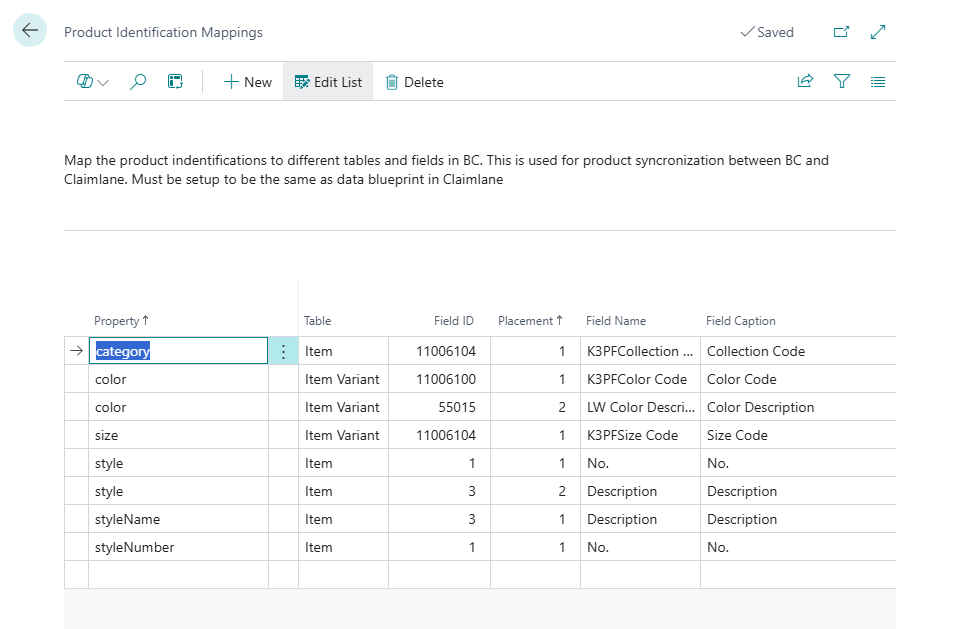
Product identification mapping is used to map product data between BC and Claimlane. This is used to map the product data blueprint in Claimlane to the item card in BC. The mapping is done by using the technical label of the tags in Claimlane and the field no. in BC.
Product Identification Mapping is located in Claimlane Brands (can be found by search or in Claimlane Suppliers).
V1 Product Identification Mapping maps Business Central fields to Claimlane product properties. Multiple fields can map to the same Property. Placement controls the order in which their values are combined, separated by a space. In this example, style combines Item No. at Placement 1 and Description at Placement 2. Item Variant fields can also be used: the example maps color and size from Item Variant fields, with two values combined for color.
In Version 2, this functionality is replaced by Data Blueprint configuration.
The data blueprint is downloaded when clicking "Get Suppliers" in Claimlane Integration Setup, along with list of suppliers and brands.
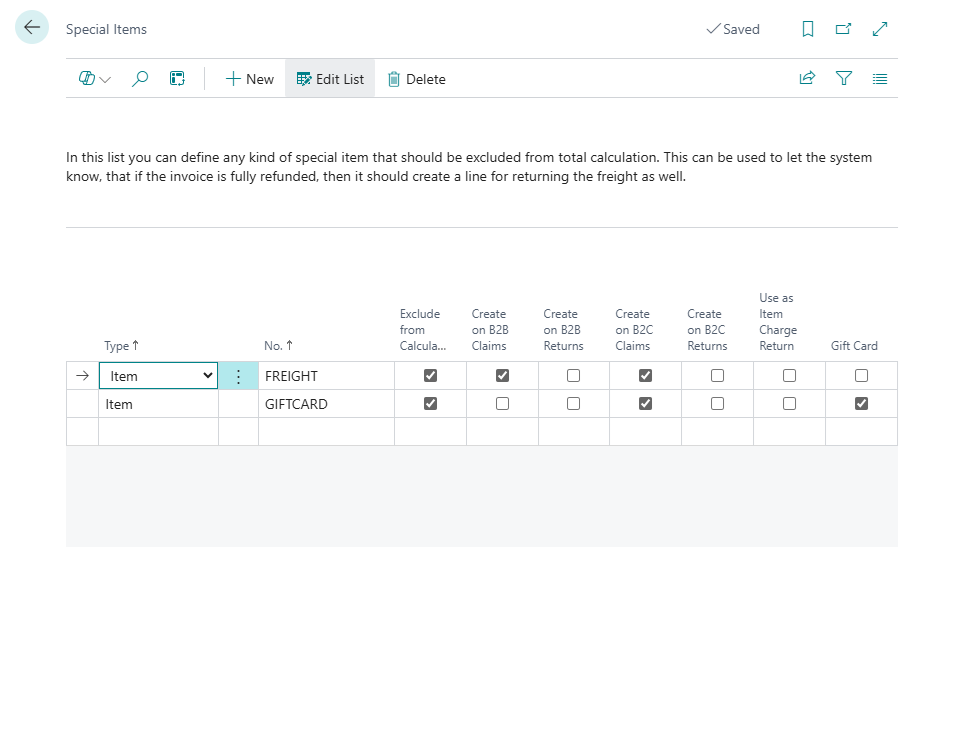
Open Special Items from Related in Claimlane Integration Setup. These identify invoice lines such as freight, rounding lines, gift cards or other non-standard items that need different handling from ordinary merchandise.
Special Items are supported in V1 B2B/B2C and V2 B2C invoice refund processing. V2 B2B line Outcomes do not use this additional-refund flow.
For example, configure freight as a Special Item, select Exclude from Calculation and enable creation for the applicable channel and document type. Freight can then be added to the refund when the merchandise on the original invoice is fully credited. Review the generated document before posting.
These legacy events and examples apply to Version 1. Your BC partner should verify the event signatures against your installed extension. V2 uses different ticket and document handlers.
| Event Name | Object Name |
|---|---|
| OnAfterInsertB2CTicketHeader | TTU B2C Ticket Sync. Handler |
| OnBeforeInsertB2CTicketLine | TTU B2C Ticket Sync. Handler |
| OnAfterInsertB2CTicketLine | TTU B2C Ticket Sync. Handler |
| OnBeforeGetB2CTicketsHandleResponse | TTU B2C Ticket Sync. Handler |
| OnBeforeInsertB2CTicketLineDataSourceTags | TTU B2C Ticket Sync. Handler |
| OnBeforeGetItemByItemReferenceB2B | TTU Document Handler |
| OnBeforeModifyB2BSalesLineNew | TTU Document Handler |
| OnAfterModifyB2BSalesLineNew | TTU Document Handler |
| OnBeforeFindB2BPrice | TTU Document Handler |
| OnFindSalesPriceNoPriceApplicationFound | TTU Document Handler |
| OnAfterGetOriginalB2BPrice | TTU Document Handler |
| OnBeforeAddItemChargeAssignmentToSalesLine | TTU Document Handler |
| OnAfterAddItemChargeAssignmentToSalesLine | TTU Document Handler |
| OnBeforeGetB2BCustomer | TTU Document Handler |
| OnBeforeGetB2CCustomer | TTU Document Handler |
| OnAfterGetOriginalB2CPrice | TTU Document Handler |
| OnBeforeAddReturnLabelLine | TTU Document Handler |
| OnAfterAddReturnLabelLine | TTU Document Handler |
| OnBeforeFindB2CPrice | TTU Document Handler |
| OnBeforeModifyB2CSalesLine | TTU Document Handler |
| OnAfterModifyB2CSalesLine | TTU Document Handler |
| OnBeforeGetItemByItemReferenceB2C | TTU Document Handler |
| OnBeforeModifyB2CSalesHeader | TTU Document Handler |
| OnBeforeCheckCustomerBlocked | TTU Document Handler |
| OnBeforeModifyB2BSalesHeader | TTU Document Handler |
| OnAfterCreateDocumentFromB2BTicket | TTU Document Handler |
| OnAfterCreateDocumentFromB2CTicket | TTU Document Handler |
| OnHandleUnshippedB2CCancellation | TTU Document Handler |
| OnBeforeAddItemObject | TTU Data Sync. Handler |
| OnBeforeAddProductIdentificationToItemObject | TTU Data Sync. Handler |
| OnBeforeAddDataToInvitesJson | TTU Data Sync. Handler |
| OnBeforeGetEmailAddress | TTU Data Sync. Handler |
| OnBeforeLoopCustomers | TTU Data Sync. Handler |
| OnBeforeSetSalesOrderNo | TTU Data Sync. Handler |
| OnBeforeSetExternalDocumentNo | TTU Data Sync. Handler |
| OnAfterInsertB2BTicketLine | TTU B2B Ticket Sync. Handler |
| OnBeforeGetB2BTicketsHandleResponse | TTU B2B Ticket Sync. Handler |
| OnBeforeInsertB2BTicketLine | TTU B2B Ticket Sync. Handler |
| OnBeforeInsertB2BTicketLineProductIdentification | TTU B2B Ticket Sync. Handler |
| OnBeforeInsertB2BTicketLineDataSourceTags | TTU B2B Ticket Sync. Handler |
| OnAfterInsertB2BTicketHeader | TTU B2B Ticket Sync. Handler |
| OnBeforeCheckFulleRefunded | TTU Toolbox |
| OnBeforeAddAdditionalRefundsToSalesHeader | TTU Toolbox |
| OnBeforeModifyAdditionalRefundsToSalesHeader | TTU Toolbox |
| OnAfterModifyAdditionalRefundsToSalesHeader | TTU Toolbox |
| OnBeforeModifyGiftCardLine | TTU Toolbox |
| OnAfterModifyGiftCardLine | TTU Toolbox |
| OnBeforeAddGiftCardsToSalesHeader | TTU Toolbox |
Eg. the following event can used to create matrix lines (if K3 Pebblestone is used):
[EventSubscriber(ObjectType::Codeunit, Codeunit::"TTU Document Handler", 'OnAfterModifyB2BSalesLineNew', '', false, false)]
local procedure OnAfterModifyB2BSalesLineNew(var SalesLine: Record "Sales Line"; var LineNo: Integer)
var
    K3PFSalesDocMgt: Codeunit "K3PF Sales Document Mgt.";
    SalesLine2: Record "Sales Line";
begin
    Clear(K3PFSalesDocMgt); SalesLine2 := SalesLine;
    K3PFSalesDocMgt.AssignToMatrixLine(SalesLine2);
    LineNo += 10000;
end;
Yes, the app is extendable through Event Publishers and Event Subscribers. Use event subscribers in your app to extend functionality. See the Events section for more info.
You can edit the tags at any time by logging into Claimlane and going to the Data Management section. Internal and flow tags are customizable. Make sure that technical labels match the labels in BC for proper integration.
For V1, open the ticket in its Claimlane B2B Tickets or Claimlane B2C Tickets page and choose "Resync Ticket". Created and Posted tickets cannot be resynced. After a successful Claimlane update, the action deletes the local ticket, resets its legacy integration-complete flag and returns it to the configured Ready status. If the update fails, the local ticket remains and the error is logged.
If above action is not available in BC, you can reproduce the effect of the button (only works for B2B and requires admin rights in Claimlane):
The ticket will then be synced to Business Central the next time the job queue entry runs.
Cancellations where orders have already been shipped/invoiced will be handled the same way as returns in Business Central.
Cancellations where the orders has not been shipped, the app will not handle these, as there are many different ways to handle these. Instead, an event has been created that your BC partner can use:
[IntegrationEvent(false, false)]
local procedure OnHandleUnshippedB2CCancellation(var TTUB2CTicketHeader: Record "TTU B2C Ticket Header"; var Customer: Record "Customer"; var InvoiceNo: Code[20]; var CurrencyCode: Code[10]; var IsHandled: Boolean)
begin
end;
If the status of the Ticket Header has not been set to "Created" or "Posted" after this event, the ticket will be set as status "Posted"
If the ticket is not shipped, and is not handled in this event, the ticket will be set as Cancelled.
This error occurs because Business Central has not found a recognizable invoice for the specified line. Please check the following:
You may need to resync the ticket after making any changes in Claimlane.
This error occurs because Business Central has found multiple items with the same EAN. In order to fix this, you must get rid of duplicate item references in BC. If you are in doubt, contact your BC partner.
This error is caused by a missing EAN on the Ticket Line in BC. This is usually do to faulty response data from Claimlane. Try and resync the ticket. If the error persists, contact your Claimlane contact.
This error is most likely because you forgot to set a Return Reason on the product before putting the ticket in "Ready for BC". Go to the ticket in Claimlane and set the return reason accordingly and then resync the ticket.
If the error persists, check the Return Reason Tag Label in Claimlane Integration Setup. It must match the Technical Label for the Return Reason tag in Claimlane.